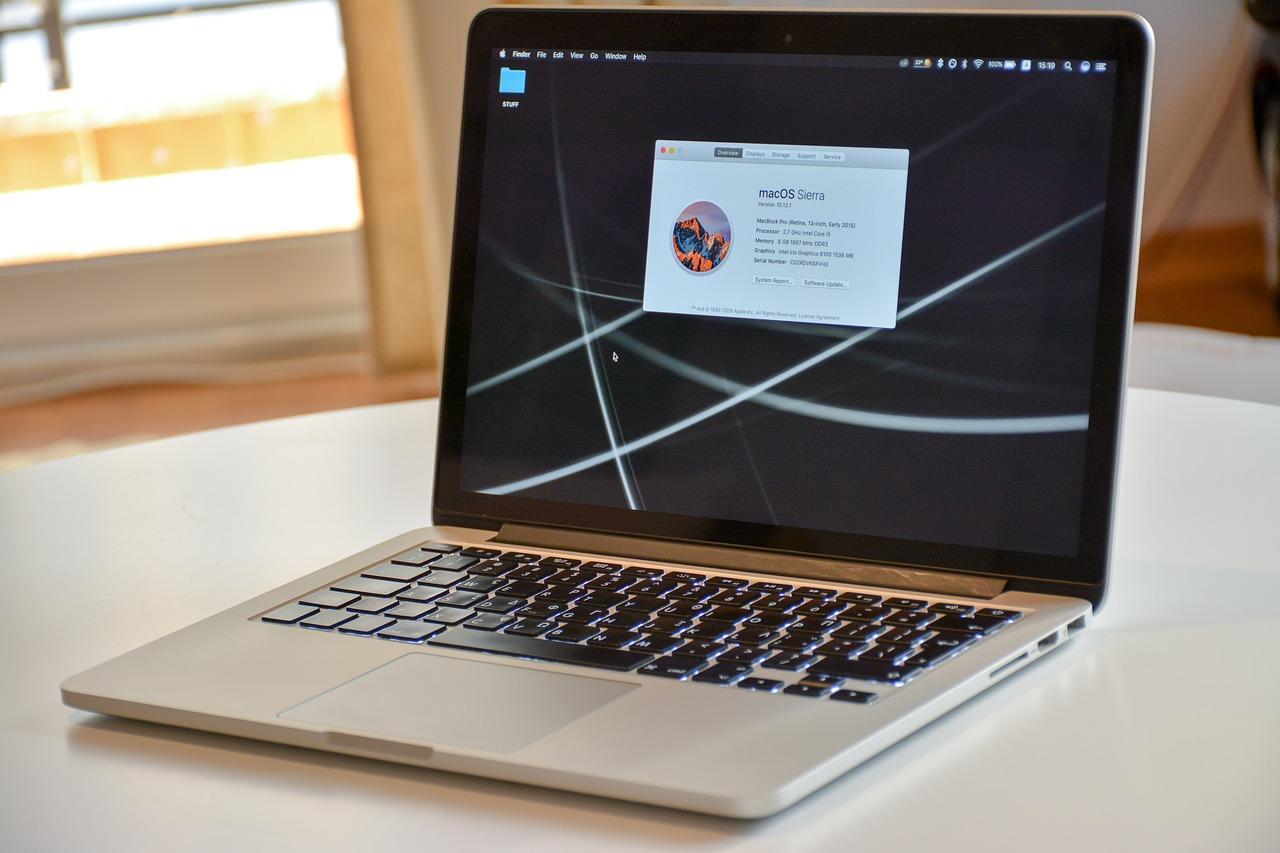
Are you tired of being tethered to your desk, waiting for your local machine to catch up with your workload? Imagine having the freedom to run your favorite desktop applications from anywhere in the world, all while enjoying the power and speed of a Windows Virtual Private Server (VPS). Whether you’re a busy professional, a remote worker, or just someone who craves flexibility, running desktop applications on a Windows VPS can change the game for you. In this article, we’ll explore how to set up and access your desktop applications remotely, allowing you to boost productivity and streamline your workflow—all from the comfort of your laptop, tablet, or even your smartphone. Ready to unlock a new level of efficiency? Let’s dive in!
Understanding Windows VPS and Its Benefits for Remote Desktop Applications
In the realm of remote work and cloud computing, Windows VPS (Virtual Private Server) has emerged as a popular solution for users looking to access desktop applications from anywhere in the world. By leveraging this technology, businesses and individuals alike can enjoy the full functionality of Windows applications without the limitations of local hardware. This versatility opens up a world of possibilities for productivity and collaboration.
One of the key benefits of a Windows VPS is its ability to provide a seamless remote desktop experience. Users can connect to their virtual server using any device with internet access, whether it’s a laptop, tablet, or smartphone. Once connected, they can run applications just as if they were sitting in front of their own workstation. This flexibility enhances work efficiency, especially for those who travel frequently or work from home.
Additionally, a Windows VPS offers enhanced performance compared to traditional shared hosting. With dedicated resources like CPU, RAM, and storage, users can experience faster load times and smoother operation of resource-intensive applications. This is particularly advantageous for tasks such as graphic design, software development, or running databases, where performance is crucial.
Security is another paramount consideration when it comes to remote applications. A Windows VPS provides a more secure environment than standard hosting solutions. With features like firewalls, anti-virus software, and regular updates, users can protect their sensitive data and applications from potential threats. Moreover, since the server is dedicated to a single user or organization, the risk of data breaches from neighboring users is significantly reduced.
Cost-effectiveness is a critical factor for many businesses. By opting for a VPS, companies can scale their resources according to their needs without investing in costly hardware. This can lead to significant savings in both time and money. Users can choose from various pricing plans that fit their budget while still enjoying the benefits of a powerful virtual environment.
| Feature | Benefit |
|---|---|
| Flexibility | Access applications from any device, anywhere |
| Performance | Dedicated resources for enhanced speed |
| Security | Robust protection for sensitive data |
| Cost-Effective | Scale resources as needed without heavy investment |
Furthermore, Windows VPS can support a wide array of applications, making it an ideal choice for various industries. Whether you need to run business software, development tools, or even gaming applications, a Windows VPS can handle it all. This broad compatibility ensures that users can rely on their virtual server for all their operational needs, minimizing disruptions and maximizing productivity.
the ease of setup and management of a Windows VPS cannot be overlooked. With user-friendly control panels and the option for managed services, users can focus on their work rather than the technical aspects of server management. This allows businesses to allocate their resources towards growth and innovation rather than getting bogged down in IT concerns.
Setting Up Your Windows VPS: A Step-by-Step Guide
Setting up your Windows VPS might seem daunting at first, but with the right approach, you can easily run your desktop applications remotely. Here’s a straightforward guide to get you started.
First, ensure that you have chosen a reliable Windows VPS provider. Look for features such as:
- Performance: Opt for SSD storage and ample RAM to ensure smooth operation.
- Uptime Guarantee: Aim for a provider that offers at least 99.9% uptime.
- Customer Support: 24/7 support is crucial for troubleshooting any issues that may arise.
Once you have your VPS set up, the next step is to access it remotely. Here’s how:
- Download and install a Remote Desktop Protocol (RDP) client if you don’t already have one. For Windows, the built-in Remote Desktop Connection is a solid choice.
- Open the RDP client and enter the IP address of your VPS along with your username and password.
- Click ‘Connect’ and you will see your VPS desktop, just like your local machine!
Now that you’re logged in, it’s time to install the applications you need. Just like on your local machine, you can download and install applications directly onto the VPS. Remember to check the system requirements of each application to ensure they run smoothly.
If you’re looking to enhance your experience, consider the following tips:
- Optimize Display Settings: Adjust the resolution and color settings for better performance.
- Use a VPN: For an added layer of security, especially when accessing sensitive applications.
- Regular Backups: Schedule regular backups of your VPS to avoid data loss.
To manage your applications effectively, it’s advisable to create shortcuts on your VPS desktop for easy access. This is especially useful if you’re running multiple applications simultaneously. You can simply right-click the application icon and select “Create Shortcut”.
If you anticipate running applications that require a lot of resources, consider configuring your VPS with additional CPU cores or RAM. This will ensure that you experience minimal lag when switching between tasks or applications.
Lastly, familiarize yourself with the Windows Task Manager. It will help you monitor resource usage and identify any applications that may be consuming more resources than necessary, allowing you to take corrective actions promptly.
Choosing the Right Windows VPS Provider for Your Needs
When it comes to selecting a Windows VPS provider, there are several critical factors to consider to ensure that your remote desktop experience is both smooth and efficient. The right provider will not only meet your current needs but also accommodate future growth. Here are some key aspects to keep in mind:
- Performance and Reliability: Look for a provider that guarantees high uptime—ideally 99.9% or more. You want a VPS that offers consistent performance, especially during peak usage times.
- Support Services: Excellent customer support is crucial. Check if the provider offers 24/7 assistance and whether they have a responsive ticketing system or live chat.
- Scalability: Choose a provider that allows you to easily upgrade your resources as your needs grow. This is particularly important if you plan to run resource-intensive applications.
- Pricing Structure: Understand the pricing model. Look for transparent pricing without hidden fees. A detailed breakdown of costs will help you make an informed decision.
- Security Features: Your data’s safety is paramount. Ensure the provider offers robust security measures, including firewalls, DDoS protection, and regular backups.
It’s also beneficial to evaluate the geographical location of the data centers. Hosting your VPS closer to your primary user base can significantly reduce latency, leading to a better overall experience when running desktop applications remotely.
Once you have a shortlist of providers, consider the trial periods they offer. Many reputable companies provide a free trial or a money-back guarantee. This can be a valuable opportunity for you to test the performance and reliability of the service before making a long-term commitment.
To help you visualize the differences between various providers, here’s a simple comparison table:
| Provider | Uptime Guarantee | Support Options | Starting Price |
|---|---|---|---|
| Provider A | 99.9% | 24/7 Chat, Phone | $20/month |
| Provider B | 99.95% | 24/7 Email, Chat | $25/month |
| Provider C | 99.9% | Business Hours Support | $18/month |
don’t overlook user reviews and testimonials. They offer insights into the experiences of current users and can help you gauge the overall satisfaction and reliability of the provider. Look for reviews that mention the provider’s response time and how they handle issues as they arise.
Making the right choice when it comes to your Windows VPS provider can drastically improve your ability to run desktop applications remotely. Take your time to research, compare, and test out different options, ensuring that you select a provider that truly meets your specific needs.
Remote Desktop Protocol: The Key to Seamless Access
When it comes to accessing your desktop applications hosted on a Windows VPS, Remote Desktop Protocol (RDP) is your best friend. This protocol allows you to connect to your server from virtually anywhere, making it easier than ever to work remotely. The beauty of RDP lies in its simplicity and the seamless experience it offers users, allowing for full control over your applications without being physically present at the server’s location.
To get started, you will need to ensure that your Windows VPS is configured to accept remote connections. This includes enabling Remote Desktop in the system properties and ensuring your firewall settings allow RDP traffic. Here’s a quick checklist to help you set up:
- Check Windows Version: Ensure you are using a version that supports RDP.
- Enable Remote Desktop: Go to System Properties > Remote tab and allow remote connections.
- Adjust Firewall Settings: Ensure port 3389 is open in your firewall configuration.
- Check User Permissions: Add users who need access to your VPS.
Once your Windows VPS is ready, connecting is a breeze. From your local machine, open the Remote Desktop Connection application. Enter the IP address of your VPS, and you’ll be prompted to log in. After authenticating, you’ll find yourself in a familiar Windows environment, ready to run your applications as if you were sitting right in front of your server.
One of the major advantages of using RDP to access your Windows VPS is the capability to run resource-intensive applications without taxing your local machine. Whether you’re running high-end software for graphic design, data analysis, or software development, your server can handle the heavy lifting. This not only speeds up your work but also frees up your local resources for other tasks.
Additionally, RDP supports file transfer between your local computer and the VPS. You can easily copy files back and forth, allowing for smooth workflow transitions. Here’s how to enable this feature:
- Open Remote Desktop Connection: Before connecting, click on “Show Options.”
- Select the Local Resources tab: Under “Local devices and resources,” check the box for “More.”
- Choose Drives: Select the local drives you want to access during your remote session.
| Feature | Description |
|---|---|
| Multi-Monitor Support | Connect using multiple monitors for an expansive workspace. |
| Audio Redirection | Play sounds from your VPS on your local machine. |
| Session Reconnection | Easily reconnect to previous sessions without losing data. |
Lastly, RDP ensures that your connection is secure, with built-in encryption to protect your data. Using it over a VPN can enhance this security even further, especially when accessing sensitive information. This combination of accessibility, performance, and security makes RDP an indispensable tool for anyone looking to run desktop applications on a Windows VPS remotely.
Installing Desktop Applications on Your VPS: A How-To
Running desktop applications on a Windows VPS can unlock a world of possibilities, allowing you to leverage powerful software remotely. Whether you need to run productivity tools, design software, or specialized applications, here’s how you can get started.
The first step is to ensure your VPS is properly set up. Make sure you have a Windows operating system installed, as this will be essential for running desktop applications. Once you have logged into your VPS via Remote Desktop Protocol (RDP), you’ll be greeted with an interface akin to your local Windows environment.
Next, you’ll need to install your desired applications. Here’s a simple process to follow:
- Download the Installer: Use your browser to download the application’s installation file directly onto your VPS. Make sure to verify that it’s compatible with the Windows version you are using.
- Run the Installer: Double-click the downloaded file and follow the on-screen instructions to complete the installation.
- Configure Settings: After installation, launch the application and adjust the settings as needed to optimize performance for remote use.
One of the critical aspects of running applications on a VPS is resource management. Make sure to monitor your VPS’s CPU, RAM, and disk usage, especially if you’re running multiple applications simultaneously. You can use tools like Task Manager or Resource Monitor to keep an eye on performance metrics.
If you want to improve your remote experience, consider using optimization techniques. Here are a few suggestions:
- Adjust Visual Effects: Navigate to System Properties > Performance Settings and choose “Adjust for best performance” to enhance responsiveness.
- Enable Remote Desktop Session Host: This allows multiple users to connect without affecting each other’s sessions.
- Utilize RemoteApp: This feature lets you run applications as if they were installed on your local machine, providing a seamless experience.
Additionally, you may want to configure your firewall settings to ensure that the required ports for the applications are open. This will prevent potential connectivity issues that could disrupt your work. Common ports to check include:
| Application | Port Number |
|---|---|
| Remote Desktop | 3389 |
| Web Browsers | 80, 443 |
| FTP Clients | 21 |
Lastly, always keep your applications up to date. Regular updates are vital for security and performance improvements. Most applications provide an option for automatic updates, which can help you stay ahead without the hassle of manual checks.
By following these guidelines, you can effortlessly run your favorite desktop applications on a Windows VPS, enhancing productivity and flexibility. It’s time to take advantage of remote capabilities and get more done, no matter where you are!

Optimizing Performance for Your Remote Applications
When it comes to enhancing the performance of your remote applications on a Windows VPS, several key strategies can make a significant difference. By implementing these techniques, you can ensure a smooth and efficient experience for users, whether they are accessing applications for work, gaming, or other purposes.
- Optimize Network Connection: Your internet connection is crucial for remote application performance. Consider using a wired connection instead of Wi-Fi, as it tends to be more stable and faster.
- Adjust Remote Desktop Settings: Tweak the settings on your Remote Desktop Protocol (RDP) to enhance performance. Disabling features such as desktop background, font smoothing, and animations can free up bandwidth.
- Choose the Right VPS Plan: Ensure that your VPS plan is tailored to your specific needs. Higher memory and CPU allocations can dramatically improve the performance of resource-intensive applications.
- Utilize Caching: Enable caching mechanisms to store frequently accessed data, reducing load times and improving response rates for applications.
Another essential aspect to consider is the configuration of your applications themselves. Some applications may have settings that allow you to optimize their performance when used remotely. Here are a few tips:
- Limit Background Processes: Close unnecessary applications running in the background to free up system resources for your remote application.
- Update Software Regularly: Always keep your applications and the operating system updated. Updates often include performance enhancements and bug fixes that can lead to a smoother experience.
- Use Lightweight Alternatives: If possible, choose applications that are designed to be lightweight and optimized for remote use, rather than resource-heavy software.
Monitoring and analyzing performance is also crucial. It helps identify bottlenecks and areas for improvement. Consider implementing the following:
| Monitoring Tool | Function |
|---|---|
| Resource Monitor | Tracks CPU, memory, disk, and network usage. |
| Performance Monitor | Enables you to create detailed performance reports. |
| Task Manager | Quickly identifies resource-heavy applications. |
Lastly, consider the geographical location of your VPS. A server closer to your users will typically provide lower latency and faster response times. If you have a diverse user base, it may also be worth looking into Content Delivery Networks (CDNs) that can cache data at various locations to enhance accessibility and speed.
By focusing on these performance optimization techniques, you can transform the way your remote applications operate, providing a seamless and efficient experience for users. Remember, small tweaks can lead to significant improvements, so don’t hesitate to experiment and find what works best for your specific setup.
Ensuring Security While Running Applications Remotely
When running desktop applications on a Windows VPS, security should always be top of mind. The convenience of remote access can expose your system to various threats if not handled correctly. Here are some essential practices to ensure your applications remain secure while operating remotely.
Use Strong Passwords: One of the simplest yet most effective security measures is to utilize strong, unique passwords for every account. Avoid common words or easily guessable information. Instead, aim for a mix of uppercase and lowercase letters, numbers, and special characters. Consider using a password manager to keep track of these passwords without compromising your security.
Implement Two-Factor Authentication (2FA): Adding an additional layer of security can significantly reduce the risk of unauthorized access. Two-factor authentication requires not just a password but also a second form of verification, such as a mobile authentication app or a text message code. This makes it much harder for cybercriminals to gain access, even if they manage to obtain your password.
Keep Software Updated: Regularly updating your operating system and applications ensures that you benefit from the latest security patches. Vulnerabilities in software can be exploited, so make it a habit to check for updates frequently. Enable automatic updates where possible to eliminate the need for manual checks.
Use a Firewall: A robust firewall acts as a barrier between your VPS and potential threats from the internet. Configure your firewall settings to allow only necessary connections, blocking all others. You can also create rules for specific applications or services to add an extra layer of protection.
Secure Remote Desktop Protocol (RDP): If you are using RDP to access your Windows VPS, ensure that it is configured securely. Change the default port from 3389 to a custom port to reduce exposure to bots and automated attacks. Additionally, consider using a VPN to encrypt your connection, further protecting your data from interception.
Monitor Logs and Activity: Regularly reviewing your server logs can help you identify unusual activity that might indicate a security breach. Look for failed login attempts, unauthorized access attempts, and any other anomalies. Tools like intrusion detection systems can automate this process and alert you when suspicious activity occurs.
Backup Data: Implement a robust backup strategy for your applications and data. In the event of a security breach, having backups can minimize losses and downtime. Store backups in a secure location, preferably offsite or in the cloud, and ensure they are encrypted to protect against unauthorized access.
By following these practices, you can significantly enhance the security of your desktop applications running remotely on a Windows VPS. The digital landscape is constantly evolving, and staying vigilant is key to safeguarding your data and maintaining operational integrity.
Troubleshooting Common Issues with Remote Desktop Applications
Running desktop applications on a Windows VPS remotely is usually a straightforward process, but sometimes issues can arise that hinder your experience. Here are some common problems you might encounter, along with tips for resolving them.
Connection Issues: One of the most frequent problems is difficulty connecting to your VPS. Here are a few steps to troubleshoot:
- Ensure your internet connection is stable.
- Check if the server is online and responding. You can use tools like ping.eu to test connectivity.
- Verify that the correct IP address and port number are being used.
- Make sure that Remote Desktop Protocol (RDP) is enabled on your VPS settings.
Performance Issues: If the performance of your remote desktop is sluggish, consider these solutions:
- Reduce the display settings of your remote session. Lowering the color depth can improve speed.
- Close any unnecessary applications running on the VPS to free up resources.
- Check for bandwidth consumption on your local network; background applications might be hogging bandwidth.
Authentication Errors: If you’re receiving authentication errors, follow these steps:
- Confirm your username and password are correct.
- Ensure that your account has permission to access the VPS.
- Check if there are any group policies affecting user access.
Display Issues: Sometimes, you may notice that the display is not rendering correctly or is blank:
- Try adjusting the screen resolution settings in the RDP options.
- Update the graphics drivers on your VPS if possible.
- Reboot the VPS, as this can resolve temporary display glitches.
Lastly, to help keep everything running smoothly, consider creating a maintenance schedule for your VPS:
| Task | Frequency |
|---|---|
| Update Windows and Software | Monthly |
| Check Firewall Settings | Bi-weekly |
| Review Resource Usage | Weekly |
| Backup Data | Daily |
By keeping an eye on these common issues and being proactive in managing your VPS, you’ll ensure a smoother remote desktop experience. Remember, when in doubt, consult your service provider’s support documentation or reach out to their customer support for expert assistance!
Enhancing Your Remote Experience with Third-Party Tools
In the realm of remote working, leveraging third-party tools can dramatically enhance your experience, especially when running desktop applications on a Windows VPS. These tools are designed to optimize connectivity, boost productivity, and streamline workflows, transforming the way you interact with remote servers.
One of the most significant advantages of using third-party tools is the ability to access your applications seamlessly. Consider these essential tools:
- Remote Desktop Protocol (RDP): A built-in option in Windows, RDP allows you to connect to your VPS with ease. Pair it with additional security measures for optimal use.
- TeamViewer: Perfect for remote support and collaboration, TeamViewer can be a game-changer for teams needing real-time assistance across various locations.
- AnyDesk: Known for its low latency, AnyDesk is ideal for graphic-intensive applications, providing a smoother experience for users needing high-performance access.
Security and performance are paramount when accessing your VPS. Using VPN services in conjunction with remote access tools ensures that your connection remains secure while maintaining speed. A VPN encrypts your data, preventing unauthorized access and providing an added layer of security.
Another area where third-party tools shine is in collaboration and productivity. Tools like Slack and Microsoft Teams can integrate with your remote desktop applications, facilitating communication and project management in real-time. You can keep your team aligned and responsive, regardless of where they are located.
For those who frequently switch between tasks, utilizing a virtual desktop environment can boost your efficiency. Tools such as Virtual Desktop Manager allow you to create multiple virtual desktops, enabling you to organize your applications and workflows logically.
To give you an idea of how these tools can enhance your remote experience, here’s a quick comparison of some popular options:
| Tool | Best For | Key Feature |
|---|---|---|
| RDP | General Remote Access | Built-in Windows support |
| TeamViewer | Support & Collaboration | Cross-platform access |
| AnyDesk | Graphic-Intensive Work | Low latency performance |
| VPN | Security | Data encryption |
Ultimately, the right combination of third-party tools can turn your Windows VPS into a powerful workstation. By enhancing connectivity, security, and collaboration, these tools not only elevate your remote experience but also empower you to work efficiently and effectively, regardless of your location.

Backups and Maintenance: Keeping Your Applications Safe
To ensure your desktop applications run smoothly on a Windows VPS, regular backups and maintenance are essential. Without these practices, you risk data loss, downtime, and potential security threats. Here are some effective strategies to keep your applications safe and your data secure:
- Automated Backups: Schedule automated backups to ensure that your data is regularly saved without any manual intervention. Utilizing tools like Windows Backup or third-party solutions can simplify this process.
- Version Control: Implement a version control system for your applications. This will allow you to revert to previous versions if issues arise after updates or changes.
- Regular Software Updates: Keep your operating system and applications updated. Regular updates can protect against vulnerabilities and enhance performance.
- Monitor Disk Space: Frequently check your VPS for available disk space. Low disk space can lead to application failures and hinder backups.
Consider creating a backup schedule that aligns with your usage patterns. For example, if your applications generate significant data daily, daily backups may be necessary. Here’s a simple backup schedule you can follow:
| Frequency | Backup Type | Recommended Tools |
|---|---|---|
| Daily | Incremental | Windows Backup, Acronis |
| Weekly | Full | Veeam, Backblaze |
| Monthly | System Image | Clonezilla, Macrium Reflect |
Don’t forget about maintenance tasks that help keep your environment optimized. Regularly clean up unnecessary files, defragment your disk, and monitor system performance metrics. Tools like the Windows Performance Monitor or Resource Monitor can provide insights into how your applications are performing and where improvements can be made.
Lastly, always have a disaster recovery plan in place. This plan should outline steps to take in case of a system failure or data corruption. Ensure that everyone involved in managing the VPS is aware of the plan and knows how to execute it swiftly.
Scaling Your VPS for Increased Demand
As your remote desktop applications gain popularity, you may notice a surge in user demand. This is where scaling your VPS (Virtual Private Server) becomes crucial to maintaining performance and user satisfaction. Fortunately, upgrading your VPS can be a straightforward process, allowing you to adapt to increased traffic seamlessly.
First and foremost, consider monitoring your resource usage. Tools like CPU and memory usage graphs can provide insights into when you need to scale. If you notice consistent high usage levels, it may be time to invest in a more powerful plan or add resources to your existing setup. Here are some key indicators to keep an eye on:
- CPU Usage: Regularly exceeding 70% can indicate a need for an upgrade.
- Memory Usage: Consistently hitting your RAM limit may slow down your applications.
- Disk I/O: Increased read/write times can affect application performance.
Next, explore scalable VPS providers that offer flexible plans. Look for options that allow you to scale resources with just a few clicks or even automatically based on usage. This flexibility ensures you won’t pay for resources you’re not using while still being able to handle spikes in traffic. Popular providers include:
- DigitalOcean
- AWS Lightsail
- Vultr
When scaling up, don’t forget to assess your network bandwidth. High user demand often leads to increased data transfer, which can bottleneck your performance. Consider upgrading your bandwidth or implementing a Content Delivery Network (CDN) to ensure users experience minimal latency. Here’s an example of how different bandwidth options can affect your performance:
| Bandwidth Plan | Monthly Data Transfer | Recommended For |
|---|---|---|
| Basic | 1 TB | Low traffic applications |
| Standard | 5 TB | Moderate user demand |
| Premium | Unlimited | High traffic applications |
Another essential aspect is to ensure your applications are optimized for performance. This includes regular updates, efficient coding practices, and potentially employing load balancing techniques. Load balancers can distribute incoming traffic across multiple servers, which ensures no single server becomes overwhelmed. This not only improves reliability but also enhances user experience.
Lastly, don’t overlook the importance of backup solutions. As you scale, the risk of system failures or data loss can increase. Regular backups will allow you to recover swiftly from any mishaps, ensuring your users continue to have a seamless experience. Consider automated backup solutions that can run on a schedule, so you never have to worry about losing critical data again.
Cost Considerations: Is a Windows VPS Worth It?
When considering whether to invest in a Windows VPS, it’s essential to weigh the costs against the benefits. A Windows VPS can be a game-changer for running desktop applications remotely, but is it worth the financial commitment? Here are some key factors to consider:
- Cost of Ownership: The initial setup costs for a Windows VPS can vary significantly depending on the provider. However, once you factor in the monthly fees, it often remains more economical than traditional hosting or maintaining physical servers.
- Scalability: A Windows VPS allows you to scale resources according to your needs. As your demand grows, you can easily upgrade your plan without undergoing a complete overhaul of your infrastructure.
- Software Licensing: Running a Windows environment means that you’ll need to account for licensing fees for both the operating system and any applications you wish to use. This can add a layer of complexity to your budget.
- Performance: Investing in a Windows VPS can lead to enhanced performance for your applications. It provides dedicated resources that can significantly improve speed and reliability compared to shared hosting solutions.
Here’s a simple breakdown of the typical costs associated with a Windows VPS:
| Expense Category | Estimated Cost |
|---|---|
| Monthly VPS Subscription | $20 – $100 |
| Windows Licensing Fee | $10 – $30 |
| Application Licenses (varies) | Depends on software |
| Technical Support | Included or $10 – $50/month |
Beyond the financial aspects, consider the value of remote access. A Windows VPS not only saves you from the hassle of local installations but also allows you to access your applications from anywhere. This flexibility can lead to increased productivity and reduced downtime.
Ultimately, the decision hinges on your specific needs. If you’re running resource-intensive applications, collaborating with a remote team, or require reliable uptime, a Windows VPS may prove invaluable. However, if your needs are minimal, weighing alternatives could be wise.
while a Windows VPS comes with its costs, the potential benefits—such as enhanced performance, remote accessibility, and scalability—make it a compelling option for many users. Analyze your unique situation and determine if the investment aligns with your goals.
Real-World Use Cases: Success Stories of Remote Application Access
Final Thoughts: Making the Most of Your Windows VPS Experience
When it comes to maximizing your Windows VPS experience, there are several strategies that can enhance both productivity and enjoyment. First and foremost, familiarize yourself with the tools and software available to you. This can make a significant difference in how you interact with your remote desktop environment. You might find the following applications particularly useful:
- Remote Desktop Connection: The built-in option allows for a seamless experience when accessing your VPS.
- TeamViewer: Perfect for those who need to provide or receive support without complicated setups.
- AnyDesk: Known for its speed and ease of use, it’s ideal for quick access on the go.
Another key aspect to consider is optimizing your VPS settings. Adjust the display and performance settings to suit your needs. For instance, reducing the visual effects can enhance speed, especially if you are working with limited bandwidth. This can be particularly helpful for graphic-heavy applications. Here’s a simple checklist for optimization:
- Disable unnecessary visual effects.
- Adjust the bandwidth settings based on your internet speed.
- Regularly update your software for improved performance and security.
Backup your data regularly. Data loss can be detrimental, so make it a habit to back up important files. Set up automated backups to reduce the chances of losing crucial information. This not only secures your data but also gives you peace of mind, allowing you to focus on your work without fear of unexpected setbacks.
Networking plays a crucial role as well. If your work involves collaboration, ensure that you choose the right networking setup. Consider creating virtual networks for specific projects or teams. This can help streamline communication and resource sharing. Below is a quick comparison of networking options that might suit your needs:
| Networking Option | Best For | Key Feature |
|---|---|---|
| VPN | Security-focused users | Encrypted connections |
| VLAN | Large organizations | Segmentation of networks |
| Dedicated IP | Frequent remote users | Consistent connectivity |
Lastly, don’t underestimate the value of community and support. Engage with forums, user groups, and online communities related to Windows VPS. Sharing experiences and solutions with others can provide you with insights that enhance your remote working environment. Whether it’s troubleshooting a specific issue or discovering new applications, connecting with others can significantly enrich your VPS experience.
By implementing these strategies, you can ensure that your Windows VPS becomes a powerful tool, tailored to your unique workflows. The right setup not only enhances efficiency but can also transform your approach to remote work. Embrace the possibilities, and take your productivity to the next level!
Frequently Asked Questions (FAQ)
Q&A: How to Run Desktop Applications on Windows VPS Remotely
Q1: What is a Windows VPS?
A1: A Windows Virtual Private Server (VPS) is a virtualized server that runs on a Windows operating system. It’s like having your own dedicated server but at a fraction of the cost. You can install software, run applications, and manage your server just like you would with a physical server.
Q2: Why would I want to run desktop applications on a Windows VPS?
A2: Running desktop applications on a Windows VPS can significantly enhance your productivity. Imagine being able to access your applications from anywhere, at any time, without being tied to a particular machine. It also allows for better resource management, as you can offload intensive tasks to the server instead of relying on your local device.
Q3: Do I need technical skills to set this up?
A3: While some technical knowledge can be helpful, you don’t need to be a tech expert to run desktop applications on a Windows VPS. Many hosting providers offer user-friendly interfaces and guides to help you get started. Plus, there are tons of resources, tutorials, and support available if you run into any issues.
Q4: How do I connect to my Windows VPS?
A4: Connecting to your Windows VPS is a breeze! You usually use Remote Desktop Protocol (RDP) to access the server. Simply enter the server’s IP address, your username, and password into your Remote Desktop application, and you’re in! You’ll see the Windows desktop just as if you were sitting in front of your own computer.
Q5: Can I run any desktop application on a Windows VPS?
A5: Yes! You can run a wide range of desktop applications on your Windows VPS, from productivity software like Microsoft Office to specialized tools for coding, design, or gaming. However, it’s important to check the system requirements of the application to ensure your VPS has the necessary resources.
Q6: What are the benefits of running applications on a VPS instead of my local machine?
A6: The benefits are substantial! First, you gain access to greater computing power and resources that might not be available on your local machine. Second, you can collaborate more easily with team members, as everyone can access the same applications and files from anywhere. Lastly, running applications on a VPS can improve security, as your data is stored offsite and can be better protected.
Q7: Is using a Windows VPS expensive?
A7: Not at all! Windows VPS plans are available in various price ranges, making it accessible for individuals and businesses alike. When you consider the productivity gains and the ability to run multiple applications concurrently, it often turns out to be a cost-effective solution in the long run.
Q8: What if I encounter issues while trying to run applications on my VPS?
A8: Don’t worry! Most VPS hosting providers offer customer support to help you troubleshoot any issues you may encounter. Additionally, there are many online forums and communities where you can seek help. You’ll never be alone on this journey!
Q9: How do I choose the right Windows VPS provider for my needs?
A9: Look for a provider that offers good performance, reliable uptime, and excellent customer support. Check reviews, compare pricing, and see if they offer flexibility in terms of upgrading or downgrading your plan. It’s all about finding a provider that aligns with your specific needs.
Q10: Ready to take the leap?
A10: Absolutely! With the right Windows VPS provider, you’ll unlock a world of possibilities for running your desktop applications remotely. Not only will it enhance your productivity, but it’ll also provide you with the flexibility to work from anywhere. Dive in and experience the benefits for yourself!
The Conclusion
running desktop applications on a Windows VPS remotely opens up a world of possibilities for both individuals and businesses. Whether you’re looking to streamline your workflow, enhance collaboration, or simply access your favorite programs from anywhere, a Windows VPS provides the flexibility and power you need.
By following the steps we’ve outlined, you’re well on your way to leveraging this technology to boost your productivity and efficiency. Remember, the ability to work seamlessly from any location can transform your daily routine and improve your overall work-life balance.
So why wait? Dive in and start exploring the benefits of remote desktop applications on your Windows VPS. If you have any questions or need further guidance, feel free to reach out. Your next level of productivity is just a click away! Happy remote working!