Are you tired of sifting through a cluttered WordPress media library, spending more time searching for images than actually creating content? You’re not alone! Managing your media can quickly become a frustrating task, especially if you have a growing collection of photos, videos, and documents. But what if I told you that there’s a way to streamline this process and make your media library work for you instead of against you? In this article, we’re diving into eight fantastic plugins that can transform your WordPress media library into a well-organized powerhouse. Whether you’re a seasoned blogger or just starting out, these tools will help you save time, enhance your workflow, and ultimately let your creativity shine. Ready to give your media library the upgrade it deserves? Let’s jump in!
Understanding the Importance of an Efficient Media Library
In the world of digital content creation, managing your media files efficiently can significantly enhance your workflow and the user experience on your WordPress site. An organized media library allows you to quickly find images, videos, and other files, which is essential for maintaining an engaging and visually appealing website.
A cluttered media library can lead to frustration. Imagine searching for a specific image only to wade through endless files. This can not only slow down your productivity but also hinder your creativity. By employing the right tools, you can streamline this process and make it a breeze to locate everything you need.
Moreover, an efficient media library contributes to your site’s overall performance. Large, unoptimized files can slow down page load times, negatively affecting user experience and SEO rankings. Plugins that help with image compression and file organization can optimize your media library, ensuring your website runs smoothly and efficiently.
Consider the following benefits of a well-organized media library:
Improved SEO: Optimize images with alt text and descriptions to boost search engine visibility.
Storage Management: Keep track of file sizes and formats to prevent server overload.
Enhanced Collaboration: Facilitate team projects with better file organization for shared access.
Utilizing plugins designed for media management can transform your experience. Many of these tools offer features like bulk uploading, automatic resizing, and advanced searching capabilities. With such enhancements, you’ll find that managing your media becomes less of a chore and more of a seamless part of your content creation process.
Plugin Name
Key Feature
Benefit
Smush
Image Compression
Faster loading times, better SEO.
Media Library Assistant
Enhanced Media Management
Streamlined file organization and searching.
FileBird
Folder Management
Easier navigation and file sorting.
Investing time in optimizing your media library isn’t just about organization; it’s about elevating your entire website experience. An efficient media library empowers you to focus on creating amazing content without the distraction of a chaotic backend. By embracing these tools, you’re not just improving your workflow but also enhancing the overall quality of your site.
Ultimately, the importance of an efficient media library lies in its ability to support your creative endeavors while ensuring your website remains user-friendly and performant. Don’t overlook this crucial aspect of your WordPress site—empower yourself with the right plugins and watch your productivity soar.
How Plugins Can Transform Your WordPress Media Management
Managing your media library can often feel overwhelming, especially as your website grows and the amount of multimedia content increases. However, leveraging the right plugins can entirely transform your media management experience, making it more efficient and organized. Here’s how plugins can help streamline your workflow:
Enhanced Organization: Plugins can introduce advanced categorization and tagging features, allowing you to sort your media files by type, usage, or even custom attributes. This makes finding the exact file you need a breeze.
Bulk Uploads: With plugins, you can upload multiple files at once, saving you precious time. No more tedious one-by-one uploads – just select your files and let the plugin handle the rest.
Improved Image Optimization: Certain plugins will automatically compress and optimize your images upon upload, enhancing your website’s performance without sacrificing quality.
Advanced Search Capabilities: Plugins can enhance the default search function within your media library, allowing you to search for images by metadata, file type, or even specific colors.
Additionally, some plugins offer features that integrate seamlessly with your existing workflows. For instance, you can automate file renaming based on predefined criteria or set up automatic backups for your media files. This not only saves time but also provides an extra layer of security for your content.
Here’s a quick comparison table of some top plugins that can aid in media management:
Plugin Name
Key Features
Best For
WP Media Folder
Folder organization, drag-and-drop uploads
Organizing large libraries
Smush
Image compression, lazy loading
Speed optimization
Enhanced Media Library
Custom taxonomies, media filtering
Advanced categorization
Media Library Assistant
Shortcode support, bulk editing
Complex media management
Moreover, many plugins come with user-friendly interfaces that require little to no technical knowledge. This accessibility means that anyone on your team can handle media management tasks, reducing the burden on developers and allowing for a more collaborative approach.
Lastly, the integration of third-party services through plugins can provide even more functionalities. Want to link your media library to a cloud storage service? There are plugins for that. Need to sync files across multiple sites? You guessed it – plugins can handle that too.
Image optimization plugins are essential tools for anyone serious about enhancing their WordPress media library. By compressing and resizing images, these plugins not only improve load times but also contribute significantly to the overall user experience on your website. When users encounter faster loading pages, they’re more likely to stay engaged, explore more content, and ultimately convert.
One of the standout benefits of using image optimization plugins is the reduction in page weight. Lighter pages mean quicker load times, which is crucial in today’s fast-paced digital world. If you’ve ever abandoned a site due to long loading times, then you understand how important speed is for retaining visitors. These plugins can drastically decrease the size of image files without sacrificing quality, striking the perfect balance between aesthetics and performance.
Moreover, optimized images can boost your site’s SEO ranking. Search engines favor sites that load quickly and provide a seamless user experience. By integrating image optimization into your strategy, you can improve your visibility on search engines like Google. This means more organic traffic and a better chance of reaching your target audience. Enhanced SEO performance can lead to:
Higher search engine rankings
Increased click-through rates
Better user engagement
Another compelling advantage of image optimization plugins is their ease of use. Most of these tools are designed with user-friendly interfaces, making them accessible even to those who may not be tech-savvy. You can typically optimize images with just a few clicks, allowing you to focus more on content creation rather than technical details. Many plugins offer features like:
Automatic optimization upon uploading images
Bulk optimization for existing images in your media library
Image resizing for various screen sizes
Consider the potential savings in bandwidth and storage costs. By reducing the size of your image files, you can free up server space and potentially lower hosting costs. Many hosting providers charge based on bandwidth usage, so optimized images can lead to significant savings over time.
Plugin Name
Key Features
Best For
Smush
Bulk smush, lazy load, resize
All-round optimization
ShortPixel
Adaptive compression, WebP support
Advanced users
EWWW Image Optimizer
Image conversion, automatic optimization
Cost-effective solutions
Lastly, having a robust image optimization plugin can lead to better mobile responsiveness. With a significant portion of web traffic coming from mobile devices, ensuring that your images are optimized for all screen sizes is crucial. Plugins often allow you to set different resolutions for different devices, enhancing the overall experience for mobile users.
integrating an image optimization plugin into your WordPress workflow can yield numerous benefits that go beyond mere aesthetics. From improved load times and enhanced SEO to better storage management and user engagement, the advantages are clear. Embracing these tools can transform your media library into a lean, efficient powerhouse, ultimately benefiting your website’s performance and user satisfaction.
Enhancing Your Media Library with Powerful Search Features
Searching for media files in a cluttered library can feel like finding a needle in a haystack. To avoid frustration and wasted time, enhancing your WordPress media library with powerful search features is essential. With the right plugins, you can transform your library into a well-organized and easy-to-navigate system.
Consider using plugins that allow for advanced filtering options. By adding filters based on categories, tags, or even custom fields, you can quickly narrow down your search results. This means no more scrolling through endless images or documents; instead, you can pinpoint exactly what you need in seconds.
Another game-changer is the ability to add metadata to your media files. Metadata provides context and details about your files, making it easier to find them later. Implementing a plugin that lets you bulk edit or add metadata can save hours of manual entry. For instance, you can include information such as the creator, copyright details, or descriptions, all of which enhance searchability.
Some plugins even offer image recognition technology. This innovative feature can automatically tag images based on their content, allowing users to search for items visually. Imagine typing “beach” and instantly retrieving all related images without manually tagging them. This technology streamlines the process, making your media library not only efficient but also intuitive.
Consider utilizing a plugin that integrates with cloud storage solutions. These plugins allow you to extend your media library beyond your server. By syncing with services like Google Drive or Dropbox, you can search your media library across multiple platforms, ensuring you never lose track of important files again.
Plugin
Key Feature
Best For
Enhanced Media Library
Categories & Tags
Organizing Media
FileBird
Folder Management
Easy Navigation
WP Media Folder
Drag & Drop Interface
User-Friendly Experience
Media Library Assistant
Bulk Edit Metadata
Advanced Search
Lastly, don’t underestimate the power of user permissions. Some plugins allow you to control who can see and search specific files based on user roles. This feature is particularly useful for collaborative environments where sensitive content needs to be protected.
Integrating these powerful search features into your media library not only simplifies file management but also enhances productivity. With the right tools at your disposal, you can create a seamless experience that allows you to focus on creating and sharing, rather than searching.
Streamlining File Organization for Quick Access
Managing a cluttered media library can be a daunting task, especially as your WordPress site grows. The right plugins can transform your media library from a chaotic collection into a well-organized system that enables you to find files effortlessly. Here are some powerful plugins that not only enhance your media management but also streamline your workflow.
Enhanced Media Library is a popular choice that allows you to categorize, filter, and tag your media files. With this plugin, you can easily create custom taxonomies for your media items, making it straightforward to locate images, videos, and documents. Imagine being able to sort through thousands of files in seconds!
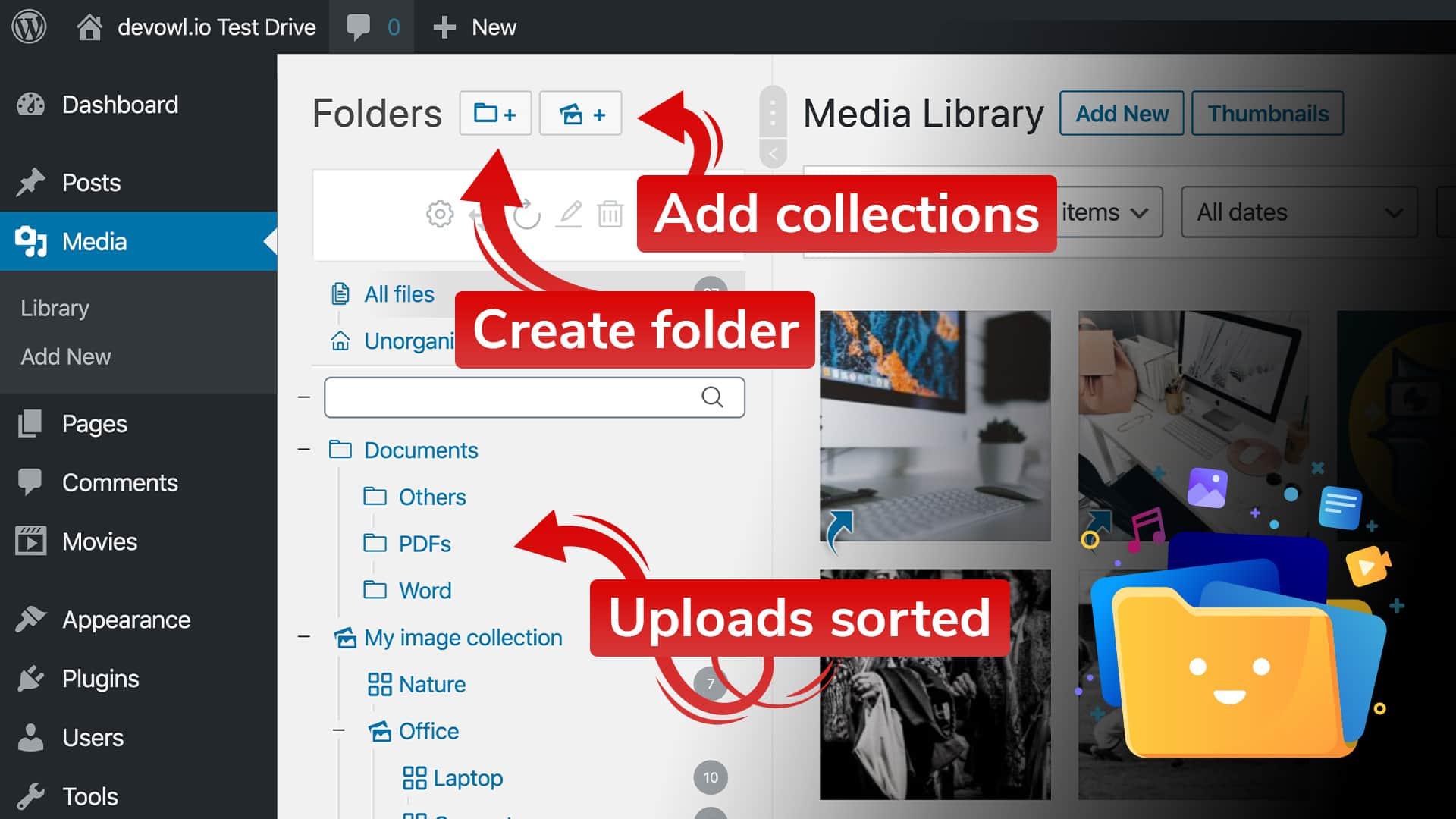
WP Media Folder takes organization a step further by offering a drag-and-drop interface for creating folders within your media library. This intuitive design mimics the file management systems you are already accustomed to, allowing you to keep everything in its place without the hassle of cumbersome navigation.
Another fantastic option is Media Library Assistant. This plugin provides advanced features such as bulk editing and improved file search capabilities. You can quickly filter your media library by various criteria, including file type, date, and even custom fields. It’s perfect for users who need to manage large volumes of media efficiently.
For those looking to boost performance, consider Imagify. While primarily an image optimization tool, it also helps keep your media library organized by automatically compressing images upon upload. This ensures your library remains efficient and fast-loading, crucial for maintaining a smooth user experience on your site.
Plugin Name
Key Feature
Best For
Enhanced Media Library
Taxonomy Creation
Categorizing Files
WP Media Folder
Drag-and-Drop Folders
User-Friendly Organization
Media Library Assistant
Advanced Filtering
Bulk Editing
Imagify
Image Optimization
Performance Improvement
Moreover, FileBird stands out as an exceptional tool for those who prefer a more visual approach to organization. This plugin allows users to create folders and subfolders, enabling a hierarchy that can mimic traditional file systems. The visual layout makes it easier to see where everything is at a glance, which can save time and reduce frustration.
Lastly, don’t overlook Media File Renamer. This handy plugin automatically renames your media files based on their titles, ensuring consistency and improving searchability. It’s a small tweak that can lead to significant time savings when you’re trying to locate a specific file.
Choosing the right combination of these plugins can significantly enhance your media library’s efficiency, allowing you to focus on creating great content rather than hunting down files. Take the time to explore these options, and watch how quickly your media management transforms!
Unleashing the Power of Bulk Upload and Editing Tools
Bulk upload and editing tools are game-changers for anyone managing a WordPress media library. By automating tedious tasks, these plugins allow you to focus on what truly matters: creating compelling content that resonates with your audience.
Imagine being able to upload hundreds of images at once, without the hassle of doing it one by one. Whether it’s for a blog post, a product page, or an online portfolio, bulk upload plugins streamline your workflow, saving you precious time and effort. Here are some advantages:
Time Efficiency: Reduce the hours spent on manual uploads.
Consistency: Maintain uniformity in media attributes like titles and alt texts.
Error Reduction: Minimize human errors during the upload process.
Editing your media files can be just as time-consuming. Fortunately, plugins equipped with bulk editing capabilities allow you to make changes across multiple media items with just a few clicks. Want to change the alt text for a series of images? Or perhaps you need to adjust the captions? These tasks can be done seamlessly, enhancing your site’s SEO and accessibility.
Here’s a quick look at some essential features offered by bulk editing tools:
Feature
Description
Bulk Rename
Easily rename multiple files in one go.
Alt Text Editing
Modify alt text for SEO enhancements.
Category Assignment
Assign categories to images for better organization.
Batch Delete
Remove multiple files at once to declutter your library.
The best part? Many of these plugins are user-friendly, requiring no technical expertise. Even if you’re new to WordPress, you can easily navigate through the options available. With clear instructions and intuitive interfaces, you can unleash the full potential of your media library.
By leveraging bulk upload and editing tools, you not only improve your workflow but also enhance the overall user experience on your site. Visitors will enjoy a well-organized library, while search engines will appreciate the optimized metadata. It’s a win-win situation!
Integrating Cloud Storage for Expanded Media Capacity
When it comes to managing media on your WordPress site, traditional storage options may not be enough to meet the demands of modern content creation. Integrating cloud storage can significantly enhance your media library’s capacity, allowing you to store, access, and manage files seamlessly. By leveraging cloud solutions, you can free up local server space while also improving the speed and performance of your site.
One of the biggest advantages of using cloud storage is the ability to scale. As your website grows, so does your media library. Cloud solutions can grow with you, providing virtually unlimited space without the need for costly server upgrades. This ensures that you can keep adding high-quality images, videos, and other media without worrying about hitting storage limits.
Moreover, cloud storage offers enhanced accessibility. With your media files stored in the cloud, you can access them from anywhere, at any time. This is especially beneficial for teams working remotely or on-the-go. Collaborating on projects becomes a breeze, as team members can upload and share files instantly, leading to improved workflow and productivity.
Security is another critical aspect where cloud storage shines. Most cloud providers implement robust security measures, including encryption, regular backups, and access controls. This keeps your media safe from data loss and unauthorized access, giving you peace of mind as you manage your content library.
Here are some popular cloud storage solutions that can be easily integrated into your WordPress media library:
Cloud Storage Solution
Key Features
Google Drive
15GB free, collaborative editing, easy sharing
Dropbox
User-friendly interface, file recovery, team collaboration tools
Integrating these cloud storage options with WordPress can be accomplished effortlessly using various plugins. These plugins not only streamline the process of uploading and managing your media but also ensure that your website maintains optimal performance. By offloading your media files to the cloud, your WordPress site can run faster and provide a better user experience.
incorporating cloud storage into your WordPress media library is a strategic move that can enhance performance, security, and scalability. With a variety of solutions available, you can find the perfect fit for your needs and create a more efficient media management system that supports the growth of your website.
Keeping Your Media Library Secure and Well-Managed
When it comes to managing your media library, security should be a top priority. A well-structured media library not only helps in organizing your content but also protects your valuable data from potential threats. Here are some effective strategies and best practices to ensure that your media library remains secure and efficiently managed.
First and foremost, consider implementing access controls. Not all users need the same level of access to your media library, especially if you have a multi-user WordPress site. By restricting access to only those who need it, you can significantly reduce the risk of unauthorized changes or data breaches. Utilize user roles effectively, assigning permissions that correspond to the tasks users need to perform.
Another essential aspect of media library management is keeping a backup of your files. Regularly scheduled backups ensure that you won’t lose valuable media during unforeseen events such as server crashes or hacking attempts. Many plugins are available to automate this process, ensuring a hassle-free experience. For instance, using a plugin like UpdraftPlus can help you set up automatic backups to cloud services like Google Drive or Dropbox.
For added security, consider using a security plugin that actively monitors your media library for vulnerabilities. Plugins such as Wordfence and Sucuri not only scan for malicious files but also provide firewall protection, keeping your media files safe from potential threats. These tools can send alerts if suspicious activity is detected, allowing you to respond quickly to any issues.
Furthermore, organizing your media files with descriptive names and alt text can enhance both security and efficiency. Not only does this practice help with search engine optimization (SEO), but it also makes it easier for you to manage and retrieve files quickly. By incorporating keywords and relevant descriptions, you ensure that your content remains accessible and easy to understand for both users and search engines.
For those who handle a large volume of media, consider utilizing a media optimization plugin. These plugins can automatically compress images and other media files without compromising quality, leading to faster load times and improved site performance. Optimizing your media not only secures your library by reducing storage usage but also enhances your overall website experience.
It’s also wise to regularly audit your media files. Periodic checks can help you identify outdated or unused files that could pose a security risk. By cleaning up your library, you minimize potential vulnerabilities and ensure that your media library remains streamlined. Tools like Media Cleaner can assist in identifying and removing these files efficiently.
Lastly, consider implementing two-factor authentication (2FA) for an added layer of security. By requiring a second form of verification, such as a code sent to your mobile device, you significantly reduce the likelihood of unauthorized access to your media library. Many security plugins offer this feature as part of their services, making it simple to enhance your site’s security.
By adopting these best practices, you can ensure that your media library remains not only secure but also well-managed. The combination of organized access, regular backups, and continuous monitoring will create a robust foundation for your content, allowing you to focus on what truly matters: creating and sharing your media.
Maximizing Your Media Librarys Potential with Accessibility Features
To truly unlock the full potential of your WordPress media library, it’s essential to prioritize accessibility features that can help all users engage with your content. Accessibility isn’t just about compliance with standards; it’s about ensuring that everyone, regardless of ability, can navigate and utilize your media resources effectively. Here are some strategies and plugins that can elevate the accessibility of your media library.
Enhancing Image Accessibility
Images are integral to your media library, but they often present challenges for users with visual impairments. To address this, consider the following:
Alt Text Optimization: Use plugins like WP Accessibility to ensure that all images have descriptive alt text. This not only improves SEO but also assists screen reader users.
Image Titles: Titles can offer additional context. Plugins that automatically generate titles based on your alt text can save you time and enhance usability.
Improving Navigation and Usability
Making your media library more navigable is crucial for users with various needs. Consider implementing:
Keyboard Navigation: Use plugins like Accessibility Helper to facilitate keyboard navigation throughout the media library.
Clear Layouts: Choose a plugin that allows for easy customization of your media library layout, ensuring elements are well-spaced and logically organized.
Video and Audio Accessibility
For websites that incorporate videos and audio, accessibility features become even more critical. Ensure that:
Transcripts and Captions: Use plugins like WP Video Lightbox that support captions and transcripts, making content accessible to those who are deaf or hard of hearing.
Audio Descriptions: Provide audio descriptions for videos to support users with visual impairments.
Creating Accessible Documents
Your media library might also include documents like PDFs, which require special attention:
Tagging and Structure: Ensure that documents are tagged correctly and structured logically. This will help screen readers navigate your content more effectively.
Document Accessibility Plugins: Use tools like PDF Embedder to create accessible versions of your documents directly in your media library.
Testing and Feedback
it’s essential to regularly test your media library for accessibility. Engage users with disabilities for feedback and utilize tools such as:
Screen Readers: Test your media library’s navigability with popular screen readers to ensure a smooth experience.
User-Friendly Interfaces: Choosing the Right Plugin for You
When selecting a plugin for your WordPress media library, it’s crucial to prioritize user-friendliness. A plugin that integrates seamlessly into your workflow can save you time and streamline your processes. Here are some key factors to consider that will help you choose the right plugin:
Intuitive Design: Look for plugins that have a clean and straightforward interface. This helps you navigate easily without a steep learning curve.
Customization Options: A good plugin should allow you to customize settings based on your needs. This ensures that you’re not stuck with a one-size-fits-all solution.
Responsive Support: Check if the plugin offers adequate support. A responsive support team can make a significant difference when you face issues or need assistance.
Regular Updates: Choose a plugin that is regularly updated to ensure compatibility with the latest WordPress versions and security patches.
Furthermore, user-friendly plugins often come with helpful documentation and tutorials. This can be invaluable for both beginners and experienced users who want to maximize their plugin’s potential. A plugin that provides clear guides can help you quickly implement its features without extensive trial and error.
Another essential aspect to consider is the integration capabilities of the plugin with other tools you might be using. For instance, if you rely on SEO tools or e-commerce solutions, ensure the chosen plugin works harmoniously with them. This kind of integration can enhance your media management without disrupting your workflow.
Feature
Plugin A
Plugin B
User Interface
Intuitive
Complex
Customization
High
Medium
Support
Responsive
Slow
Updates
Frequent
Infrequent
Lastly, consider user reviews and community feedback. Often, real-world experiences shared by other users can provide insights into how user-friendly a plugin truly is. Look for common themes in reviews, such as ease of installation, usability, and overall satisfaction. This will give you a clearer picture of what to expect.
Keeping these factors in mind will guide you in selecting the plugin that not only meets your media management needs but also enhances your overall WordPress experience. With the right choice, you’ll find that managing your media library becomes less of a chore and more of a streamlined process.
Real User Experiences: Success Stories with Media Library Plugins
Many users have experienced transformative results by integrating media library plugins into their WordPress sites. For instance, Sarah, a small business owner, shared how the FileBird plugin helped her organize her media files seamlessly. Before implementing this tool, her media library was a chaotic mix of images and documents. With FileBird, she could create folders and subfolders, allowing her to find her assets quickly and efficiently. ”It felt like spring cleaning for my media library,” Sarah exclaimed!
Another success story comes from Mark, a seasoned blogger who often juggles multiple projects. He found that the Media Library Assistant plugin was a game changer for managing metadata and taxonomy. “I used to spend hours adding descriptions to my images and videos,” Mark reported. “Now, with the bulk edit feature, I can update dozens of files at once! It’s a massive time saver.”
Similarly, Lisa, who runs an online photography store, noted how the Envira Gallery plugin not only streamlined her media library management but also enhanced her website’s performance. “I loved how easy it was to build beautiful galleries, and the loading times improved significantly too,” she said. “My customers can now browse through my work without any lag, which has led to increased sales!”
User
Plugin Used
Key Benefit
Sarah
FileBird
Organized media folders
Mark
Media Library Assistant
Bulk edit metadata
Lisa
Envira Gallery
Faster loading times
Emily, a content manager for a nonprofit organization, found that the WP Media Folder allowed her team to collaborate much more efficiently. “With multiple users uploading content, it was a nightmare keeping track of everything. Now, we can assign roles and see who uploaded what,” Emily noted. This feature not only improved accountability but also streamlined their content creation process.
And let’s not forget about John, a digital marketer who turned to the Media Grid plugin to showcase his client’s portfolios. “I had tried several solutions, but Media Grid’s flexibility in layout and design options made all the difference,” he shared. It empowered him to create visually stunning galleries that captured the essence of his client’s work, resulting in higher engagement rates.
These stories highlight the power of media library plugins in enhancing productivity, organization, and user engagement. Whether you’re a small business owner, a blogger, or a digital marketer, the right media library plugin can make a significant difference in your workflow and overall success.
Future-Proofing Your Media Library with Regular Updates
In the ever-evolving digital landscape, keeping your media library fresh and efficient is crucial. Regular updates not only enhance your site’s performance but also ensure that you remain competitive in your niche. By investing time in optimizing your media library, you can significantly improve user experience, reduce loading times, and ultimately boost your SEO rankings.
To maintain a robust media library, consider implementing these strategies:
Regularly Audit Your Media Files: Schedule routine checks to identify outdated or redundant files. Removing unnecessary media helps streamline your library and improves loading speeds.
Use Descriptive Filenames: Renaming files to be more descriptive not only aids in organization but also enhances SEO. Incorporate relevant keywords to help search engines index your media properly.
Optimize Images: Compress images to reduce their file size without compromising quality. This step is essential for fast loading times and a better user experience.
Organize with Folders: Utilize plugins that allow folder organization within your media library. This keeps everything tidy and makes it easier to locate files when needed.
Implement Version Control: Keep track of changes to media files by utilizing version control plugins. This way, you can revert to previous versions if necessary, ensuring that your content remains consistent and reliable.
Additionally, leveraging the right plugins can drastically improve your media library’s efficiency. Here’s a quick look at some of the top choices:
Plugin Name
Key Feature
Benefit
Smush
Image Compression
Reduces image sizes for faster loading without loss of quality.
Media Library Assistant
File Organization
Enhances the management of media files through categories and tags.
FileBird
Folder Management
Allows you to create folders to organize your media files efficiently.
Imagify
Image Optimization
Automatically optimizes images during upload, saving time.
WP-Optimize
Database Cleanup
Regularly cleans up your media library by removing unused media.
By incorporating these plugins and strategies into your workflow, you’ll not only enhance your media library’s functionality but also ensure that it remains relevant and efficient. Remember, a well-maintained media library is an asset to your website, leading to happier visitors and potentially higher conversion rates. Take the time to invest in your media management today for lasting benefits tomorrow.
Final Thoughts on Elevating Your WordPress Media Experience
When it comes to enhancing your WordPress media experience, the right plugins can make all the difference. They not only streamline your workflow but also improve how visitors interact with your content. By implementing these tools, you can take full control of your media library, ensuring that it serves your needs effectively.
One major advantage of using plugins is the ability to automate tedious processes. For instance, certain plugins allow you to bulk optimize your images, saving you time and ensuring your website loads faster. Speed is crucial, as slower loading times can lead to increased bounce rates and decreased user engagement.
Another aspect to consider is organization. Plugins designed for categorization and tagging can transform a chaotic media library into a neatly organized database. By using features such as custom taxonomies or folder structures, you can quickly locate and manage your media files. This not only simplifies the management process but also enhances your overall website efficiency.
Analytics also play a critical role in refining your media strategy. By integrating analytic tools within your WordPress dashboard, you can track which media files resonate most with your audience. This data will enable you to make informed decisions about future content, ensuring that you’re consistently meeting the needs of your visitors.
Moreover, consider the impact of accessibility. Some plugins focus on making media content more accessible for individuals with disabilities, which is not just a best practice but also a legal requirement in many jurisdictions. By prioritizing accessibility, you not only expand your audience but also enhance user experience.
Additionally, you can enhance your media library with features that allow for easy sharing and embedding across various platforms. Social media integration plugins allow you to effortlessly share media without the need for extra steps, helping to promote your content far and wide.
To help you visualize the benefits of these plugins, here’s a simple comparison table highlighting some top choices:
Plugin Name
Key Features
Best For
Smush
Image optimization
Speed improvements
Media Library Organizer
Folder management
File organization
WP Media Folder
Drag-and-drop interface
User-friendly management
Envira Gallery
Responsive galleries
Visual storytelling
Investing time to explore and implement these plugins will not only enhance your media library but can also lead to greater audience engagement and satisfaction. As your website grows, a well-structured media library will ensure that you’re ready to tackle any content challenge that comes your way. The better your media experience, the more your audience will appreciate the quality of your content.
Taking the Next Step: Recommended Plugins for Every User
To enhance your WordPress media library experience, consider integrating these essential plugins. Each one is designed to streamline workflows, improve organization, and elevate your site’s performance.
Media Library Assistant: This versatile plugin allows for better organization of your media files. You can categorize, tag, and even create custom taxonomies for your media items, making it easier to find what you need.
FileBird: A user-friendly file manager that adds a folder structure to your media library. You can drag and drop files into folders and easily navigate through your media assets.
Enhanced Media Library: This plugin extends the default media library functionality, helping you manage your files through custom MIME types and filtering options, ensuring you can locate your files faster.
WP Smush: Optimize your images without sacrificing quality. WP Smush compresses images automatically upon upload, reducing load times significantly.
Think of these plugins as your toolkit for a more organized and efficient media library. Each one brings unique strengths to the table, allowing you to tailor your setup according to your specific needs.
Plugin
Key Feature
Best For
Media Library Assistant
Custom taxonomies
Advanced organization
FileBird
Folder management
Visual file organization
Enhanced Media Library
Custom filtering
Quick file retrieval
WP Smush
Image optimization
Faster loading times
Imagify: Another fantastic image optimization plugin that ensures your images are lightweight and load quickly. Imagify provides multiple compression levels to meet your needs.
Media Secure: Protect your media files with this plugin that restricts access to your uploads based on user roles, ensuring your content is viewed only by the intended audience.
Watermark Reloaded: Safeguard your images by adding watermarks automatically. This is crucial for photographers and artists who want to protect their work from unauthorized use.
Integrating these plugins will not only enhance the functionality of your media library but also improve the overall user experience on your site. Enjoy a more organized, efficient, and secure media management process that saves you time and effort!
Frequently Asked Questions (FAQ)
Q&A: 8 Plugins to Create a More Efficient WordPress Media Library
Q1: Why should I care about optimizing my WordPress Media Library? A1: Great question! An optimized Media Library helps you manage your images, videos, and other media files more efficiently. It can save you time when searching for files, improve site performance, and enhance overall user experience. Plus, who doesn’t want a clutter-free workspace?
Q2: What types of plugins should I look for to enhance my Media Library? A2: Look for plugins that offer features like media organization, image optimization, bulk editing, and enhanced search capabilities. These tools can transform your Media Library from chaotic to streamlined in no time!
Q3: Can you give me an overview of some top plugins? A3: Absolutely! Here are a few standout plugins:
Media Library Assistant: This powerhouse helps you organize your media files with categories, tags, and custom taxonomies.
WP Smush: This plugin optimizes image sizes without sacrificing quality, ensuring your site loads faster.
Enhanced Media Library: It allows you to categorize and filter media files easily, making it simpler to locate specific assets.
FileBird: Think of this as a file manager for your Media Library. It helps you create folders and subfolders for better organization.
Imagify: Another fantastic image optimization tool that compresses images and ensures they load quickly.
Media Library Folders: This plugin gives you a visual way to manage your media files, making it intuitive and easy to navigate.
ShortPixel Image Optimizer: It’s another image compressor that works efficiently behind the scenes, improving your site’s speed.
WP Media Folder: This plugin allows for advanced media organization, giving you the flexibility to create custom folders.
Q4: How do these plugins improve my site’s performance? A4: By optimizing images and organizing files, these plugins reduce load times and make it easier to manage your media assets. A faster site not only improves user experience but also can positively impact your SEO rankings—everyone wins!
Q5: Are these plugins user-friendly for someone who’s not tech-savvy? A5: Definitely! Most of these plugins are designed with usability in mind. They come with straightforward interfaces and helpful documentation, making it easy for users of all skill levels to jump right in.
Q6: Can I use multiple plugins simultaneously? A6: Yes, you can combine several of these plugins to optimize different aspects of your Media Library. However, just be cautious—using too many plugins can slow down your site, so pick the ones that best fit your needs!
Q7: Is there a cost associated with these plugins? A7: Many of these plugins offer free versions with essential features, while premium versions may provide advanced functionalities. Assess what you need and choose accordingly; sometimes, investing in a premium version pays off with significant time savings!
Q8: How do I get started with these plugins? A8: Getting started is easy! You can search for these plugins directly in your WordPress dashboard under “Plugins > Add New.” Just install and activate them, then follow the setup instructions. Before you know it, your Media Library will be transformed!
Q9: What if I run into issues while using these plugins? A9: Most plugin developers offer great support through forums or documentation. If you run into any specific issues, don’t hesitate to check their support channels or search for solutions online. The WordPress community is incredibly helpful!
Q10: Are there any long-term benefits to using these plugins? A10: Absolutely! Beyond immediate efficiency gains, a well-organized and optimized Media Library can lead to better content management, improved site performance, and a more enjoyable user experience, which can translate into higher engagement and conversions over time.
So, are you ready to take your WordPress Media Library to the next level? With these plugins, you’ll wonder why you didn’t do it sooner!
Insights and Conclusions
As we wrap up our exploration of “8 Plugins to Create a More Efficient WordPress Media Library,” we hope you feel inspired to take your media management to the next level. With the right tools, you can streamline your workflow, save precious time, and enhance the overall experience for yourself and your visitors.
Imagine effortlessly organizing your images, quickly finding that perfect video, and never having to worry about file sizes slowing down your site. Sounds dreamy, right? These plugins are here to make that dream a reality!
So, why not give them a try? Test out a couple today and see how much easier managing your media can be. Your future self—and your website—will thank you! If you have any experiences or tips to share, drop them in the comments below. Let’s keep the conversation going and turn your WordPress site into the efficient powerhouse it deserves to be! Happy optimizing!