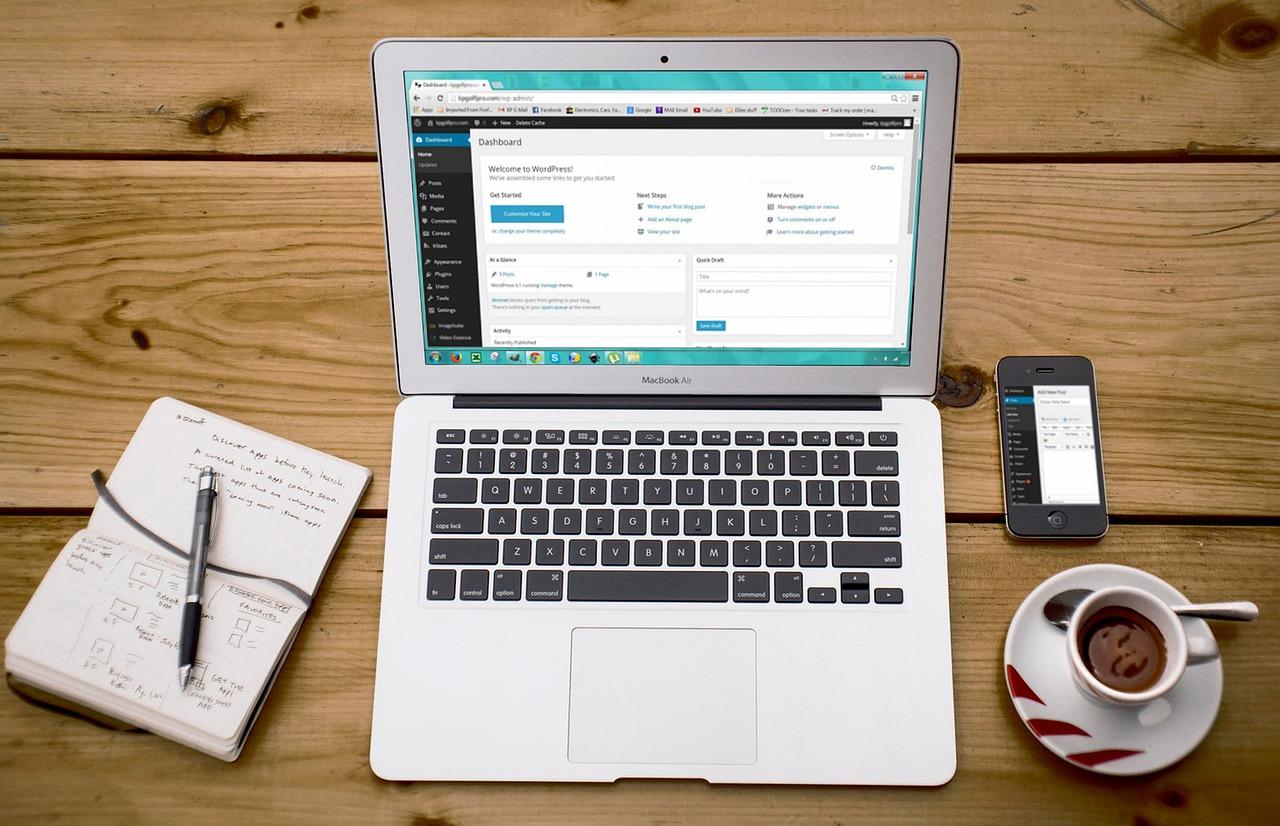
Are you ready to take your website to the next level? If you’ve been using WordPress for a while, you’ve probably heard the buzz about Gutenberg, the powerful block editor that’s reshaping how we create content. Whether you’re a seasoned blogger or a small business owner looking to enhance your online presence, mastering Gutenberg is a game-changer. This tutorial is your friendly guide to navigating the world of blocks, giving you the tools to craft stunning pages and posts with ease. Say goodbye to clunky layouts and hello to a seamless editing experience! Join us as we dive into the essentials of the WordPress block editor, explore its features, and unlock your creative potential. Trust us, once you harness the power of Gutenberg, you’ll wonder how you ever managed without it! Let’s get started!
Understanding the Basics of the Gutenberg Block Editor
The Gutenberg Block Editor revolutionizes the way you create and manage content in WordPress. Unlike the classic editor, which relies on a single text area for content creation, Gutenberg introduces a modular approach using blocks. Each block serves as a distinct element, allowing for greater flexibility and creativity in layout and design. Let’s dive into the essentials of using this powerful tool.
At its core, the block editor organizes your content into different block types. Here are some of the most common blocks you’ll encounter:
Paragraph Block: Perfect for adding body text.
Heading Block: Helps structure your content with headings.
Image Block: Easily insert and format images.
Gallery Block: Showcase multiple images in a grid layout.
Button Block: Create call-to-action buttons that stand out.
Adding and customizing blocks is simple. To insert a new block, click the plus (+) icon at the top of the editor or within the content area. You can also type a forward slash (/) followed by the block name for a quick insert. Once a block is added, you’ll notice a toolbar that appears above it, providing options for formatting, aligning, and more. This streamlined interface enhances your workflow by placing essential tools at your fingertips.
Another standout feature of the block editor is its ability to create reusable blocks. This is particularly useful for elements you might add frequently, such as disclaimers or promotional banners. To create a reusable block:
Add a block and customize it to your liking.
Click the three dots in the block’s toolbar and select “Add to Reusable Blocks.”
Name your block and save it for future use.
Tables are another powerful way to display information effectively. With Gutenberg, you can effortlessly create tables that are not only functional but also visually appealing. Here’s a quick example of how a simple table can look in your content:
Block Type
Description
Text Block
Used for paragraphs and standard text content.
Media & Text Block
Allows you to place media alongside text.
One of the most exciting aspects of the block editor is its support for third-party plugins that can add new blocks to your editor. This means that your content creation capabilities are virtually limitless. From advanced sliders to custom post layouts, you can expand your toolkit to suit your specific needs. Just be sure to choose plugins that are well-maintained to ensure compatibility over time.
Lastly, don’t forget about the block settings menu located on the right sidebar. Here, you can adjust alignment, spacing, and other properties for each block. This feature allows for granular control over how your content appears, ensuring that you can achieve the perfect look for your site.
Why You Should Embrace the Gutenberg Experience
Feature
Gutenberg
Classic Editor
Real-time Editing
✅
❌
Drag and Drop Blocks
✅
❌
Custom Blocks
✅
Limited
Performance
Optimized
Standard
forward-thinking content creator ready to harness the power of modern web technologies.
So, whether you’re a seasoned developer or just starting out, the benefits of switching to Gutenberg are clear. It’s more than just a new way to create content; it’s a complete reimagining of how we interact with our websites, making it an essential experience for anyone serious about building a successful online presence.
Exploring the Gutenberg Interface: A User-Friendly Overview
The Gutenberg editor, WordPress’s innovative block editor, has transformed the way we create and manage content. At its core, this interface is designed to be intuitive and user-friendly, catering to both beginners and seasoned developers. Let’s dive into its key features and capabilities that make content creation a breeze.
Understanding the Block System
At the heart of the Gutenberg experience is the block system. Each piece of content is treated as a block, which allows for a modular approach to building pages and posts. Here’s what you can expect from this system:
Flexibility: Add, rearrange, and customize blocks to create unique layouts.
Diversity: Choose from a wide range of content blocks including text, images, galleries, buttons, and more.
Ease of Use: Drag and drop functionality simplifies the editing process.
Customizing Blocks
Each block comes with its own set of customization options, allowing you to tailor your content to match your brand’s identity. For example:
Block Type
Customization Options
Text Block
Font size, color, alignment, and background.
Image Block
Size, captions, and link settings.
Button Block
Color, text, and link options.
Publishing Made Easy
Once your content is ready, publishing is just a click away. The Gutenberg interface allows you to preview how your post will look across different devices, ensuring that your audience gets the best experience possible. Plus, you can save drafts and schedule posts to go live at the perfect time.
Integrating Media Effortlessly
Gutenberg makes it easy to integrate media into your posts. You can:
Embed Videos: Directly from platforms like YouTube or Vimeo.
Add Audio Files: Perfect for podcasts or music sharing.
Incorporate Social Posts: Embed tweets or Instagram posts seamlessly.
Utilizing Patterns and Templates
For a quick start, Gutenberg offers a selection of predefined patterns and templates. These can speed up the design process and inspire creativity. You can choose from:
Pre-built Layouts: For landing pages, blog posts, or portfolio showcases.
Customizable Sections: That you can tweak to fit your style.
Accessibility and Collaboration
Gutenberg is designed with accessibility in mind. It helps all users, including those with disabilities, to navigate and create content effectively. Additionally, the collaborative features enable multiple users to work on the same post, making it easier for teams to produce high-quality content.
Creating Your First Post with Gutenberg: Step-by-Step Guide
Getting Started with the Block Editor
Welcome to the world of Gutenberg! This powerful block editor empowers you to create stunning posts with ease. To kick things off, navigate to your WordPress dashboard and click on Posts, then Add New. You’ll be greeted by a clean slate, ready for your creativity!
Understanding Blocks
At the heart of Gutenberg are blocks. Each block serves a different purpose, allowing you to add various types of content seamlessly. Here’s a quick rundown of some essential blocks you might use:
Paragraph: For your main text content.
Image: To add visual flair to your post.
Heading: To structure your content effectively.
List: For bullet points or numbered lists.
Quote: To highlight important statements.
Adding Your First Block
To add a block, click on the + icon located at the top left corner or within the editor area. A menu will pop up featuring various block options. Select the block type you wish to use, and it will instantly appear in your editor. Need to rearrange blocks? Just click and drag them into your desired position—it’s that simple!
Customizing Your Content
Every block comes with its own set of settings. Click on a block to reveal the toolbar above it. Here, you can:
Change alignment: Adjust text or images to fit your layout.
Style text: Apply bold, italic, or strikethrough effects.
Add links: Hyperlink your text or images to enhance navigation.
Additionally, explore the sidebar settings for more customization options, such as color, background, and spacing.
Previewing Your Post
Before hitting that Publish button, it’s crucial to preview your work. Click on the Preview option located in the top right corner to see how your post will look to your readers. This step allows you to catch any last-minute adjustments you might want to make!
Publishing Your Masterpiece
When you’re satisfied with your creation, go ahead and click on Publish. A confirmation dialog will pop up to ensure you’re ready to share your post with the world. Take a moment to set your visibility options—public, private, or password-protected—before confirming your publication.
Table of Common Block Shortcuts
Block Type
Shortcut Key
Paragraph
Ctrl + Alt + P
Image
Ctrl + Alt + I
Quote
Ctrl + Alt + Q
List
Ctrl + Alt + L
Final Thoughts
With Gutenberg, creating and formatting posts has never been easier! Embrace the flexibility of blocks, and don’t hesitate to experiment with different layouts and styles. Each post is a new opportunity to connect with your audience and showcase your unique voice!
Diving into Blocks: What Are They and How Do They Work?
Diving into the world of WordPress blocks opens up a dynamic and intuitive way to create content. Blocks are the fundamental building elements of the Gutenberg editor, allowing you to add various types of content to your posts and pages easily. Each block serves a unique purpose, transforming how you think about laying out your website.
At the heart of the block editor’s functionality lies its versatility. Here are some of the most commonly used block types:
Paragraph Block: The simplest form for adding text.
Image Block: Perfect for uploading and displaying images.
Gallery Block: A great way to showcase multiple images in a grid.
Quote Block: Ideal for highlighting testimonials or quotes.
Button Block: Useful for adding call-to-action buttons.
Each block can be customized to fit your design preferences, allowing you to alter its styling directly within the editor. You can change colors, adjust alignment, and even add custom CSS if you’re feeling adventurous. This level of customization ensures your content not only conveys information but also aligns with your brand’s visual identity.
One of the standout features of the block editor is the ability to easily rearrange blocks. By simply dragging and dropping, you can change the order of your content, making it incredibly user-friendly. This flexibility empowers you to experiment with different layouts until you find the perfect arrangement for your message.
Moreover, blocks come with a variety of additional options. For example, if you use a list block, you can choose between bullet points or numbered lists, allowing for tailored content presentation. Check out the following table for a quick overview of block options:
Block Type
Customization Options
Paragraph
Font size, color, alignment
Image
Size, alignment, link to media
Gallery
Number of columns, image spacing
Button
Color, size, link
The block editor also supports reusable blocks, which can save you time when working on multiple pages or posts. If you find yourself using a specific layout or component frequently, simply create a reusable block. Any updates made to it will reflect across all instances, ensuring consistency throughout your site.
In essence, the Gutenberg editor is more than just a tool; it’s a powerful mechanism that allows you to express your creativity and streamline your content creation process. By understanding how blocks work and leveraging their capabilities, you can enhance your site’s usability and visual appeal, making it more engaging for your visitors.
Mastering Block Types: Text, Media, and More
The Gutenberg block editor is all about flexibility, letting you create stunning layouts with various content types. Whether you’re a seasoned developer or a beginner, mastering the different block types is essential for building captivating pages. Let’s dive into the most commonly used blocks that can enhance your content significantly.
Text Blocks
Text blocks are the backbone of any content-driven website. They are perfect for adding paragraphs, headings, lists, and quotes. Here are some essential text blocks:
Paragraph: Use this block for your main content.
Heading: Organize your content with headings (H1 to H6) for better readability.
List: Present information clearly in bullet points or numbered lists.
Quote: Highlight testimonials or important statements from other authors.
Utilize formatting options to enhance your text, such as bold, italics, or color changes, to draw attention to key points.
Media Blocks
Visual content is just as important as text! The Gutenberg editor provides a variety of media blocks to engage your audience:
Image: Add high-quality images to create visual interest.
Gallery: Showcase multiple images in a beautiful grid layout.
Video: Embed videos from platforms like YouTube or Vimeo to enrich your content.
Audio: Share podcasts or music tracks easily.
Each media block can be customized with captions, alignment, and link options to better fit your page design.
Combining Blocks for Dynamic Content
One of the standout features of the Gutenberg editor is the ability to combine different block types. Mixing text and media blocks can create a more engaging experience. Consider using:
Block Type
Purpose
Example
Image + Text
To convey a message with visual support.
Image on the left, text on the right.
Video + Paragraph
To explain the video content in detail.
Video followed by an in-depth description.
Gallery + Caption
To provide context for multiple images.
Gallery with short descriptions under each photo.
Experiment with different combinations to discover what resonates best with your audience.
Advanced Block Types
Once you feel comfortable with the basics, it’s time to explore advanced block types. These can add functionality and interactivity to your site:
Buttons: Create call-to-action buttons that stand out.
Columns: Structure your content in multiple columns for a professional look.
Social Icons: Link to your social media pages effortlessly.
Using these advanced blocks can elevate your content and encourage user interaction, making your site more engaging.
Customizing Your Content: Tips for Using Block Settings
When it comes to enhancing the visual appeal and functionality of your WordPress site, mastering block settings is essential. The Gutenberg editor offers a plethora of customization options that allow you to create unique layouts tailored to your audience’s needs. Here are some tips to help you make the most out of these powerful settings.
Start with the Basics. Familiarize yourself with the toolbar options available for each block. By clicking on a specific block, you’ll see an array of settings that can be adjusted. Here are some basic options to consider:
Alignment: Choose from settings like left, center, right, or wide alignment to control the placement of your content.
Background Color: Use the color palette to set a background that complements your overall theme.
Typography: Font size and style can significantly impact readability and engagement.
Next, dive into the advanced settings to unleash even more creativity. Each block has its own unique options, but there are some common settings that can elevate your design:
Custom CSS: If you’re comfortable with CSS, you can add custom styles to individual blocks for a truly personalized touch.
Hover Effects: Adding hover effects can make your site more interactive. Consider a subtle change in opacity or color.
Spacing Adjustments: Use margin and padding settings to control the whitespace around your blocks, ensuring a tidy layout.
Utilize the Reusable Blocks feature for elements you often use, such as call-to-action buttons or testimonials. By saving these blocks, you can maintain consistency throughout your site and save time during the content creation process.
Don’t hesitate to experiment! Whether you want to create a two-column layout or a grid of images, the block editor provides the flexibility to try new designs. Below is a simple table that outlines some common block types and their potential uses:
Block Type
Best Used For
Paragraph
Standard text content
Image
Visual storytelling
Gallery
Showcasing multiple images
Button
Encouraging actions
Preview Your Changes regularly. The beauty of the block editor is that you can see how your adjustments will look in real-time. Use the preview function before publishing to ensure that everything appears as you intend.
don’t forget to check mobile responsiveness. With an increasing number of users accessing websites via mobile devices, ensuring that your blocks look great on all screen sizes is vital. Use the block settings to adjust layouts specifically for mobile views.
By taking advantage of these tips and the custom settings available in the WordPress block editor, you’ll elevate your content and create a memorable experience for your site visitors.
Enhancing Your Posts with Advanced Blocks and Features
When it comes to creating captivating posts in WordPress, utilizing advanced blocks and features can elevate your content from ordinary to extraordinary. Embracing the full potential of the Gutenberg editor allows you to craft engaging layouts that not only draw readers in but also keep them on your page longer.
One powerful tool at your disposal is the Columns Block. This feature enables you to make your text and images work together harmoniously. You can create visually appealing sections by splitting your content into two or more columns. For instance, consider using a two-column layout to juxtapose an image with descriptive text, allowing your audience to absorb information more effectively. Here’s a quick example:
Captivating Headlines
Use compelling headlines to draw attention and encourage readers to delve deeper into your post.
Another feature worth exploring is the Group Block. This allows you to bundle different elements together, giving you control over spacing, background colors, and more. By grouping related content, you create a cohesive look that enhances readability and flow. For instance, you can group a quote, an image, and the accompanying text into a visually distinct section that stands out.
Don’t overlook the Button Block. This simple yet effective feature can guide readers towards actions you want them to take, whether it’s visiting another page, signing up for a newsletter, or downloading a resource. Customizing your buttons with engaging text and color options can significantly improve user interaction. Here’s how to style your buttons:
Color Choices: Use contrasting colors to make your buttons pop.
Text Styles: Keep the text concise and action-oriented.
Size Variations: Experiment with sizes to see what fits best with your overall design.
If you’re looking to present data or comparisons, the Table Block is an excellent addition. Tables can organize information neatly and make it easier for your readers to digest complex details. Below is an example of a simple comparison table:
Feature
Basic Plan
Premium Plan
Storage
5GB
20GB
Support
Email
24/7 Chat
Customization
Limited
Full
consider incorporating the Media & Text Block. This allows you to combine images with text in a balanced format, perfect for storytelling. Use this block to narrate your experiences or share insights alongside relevant visuals, creating a narrative that’s visually and contextually engaging.
By leveraging these advanced blocks and features, you can transform your posts into dynamic, interactive experiences that captivate and inform your audience. Embrace the creativity that comes with the Gutenberg editor and watch your engagement soar!
Utilizing Reusable Blocks for Efficiency
In the fast-paced world of content creation, efficiency is key. One of the best ways to streamline your workflow within the WordPress block editor is by leveraging the power of reusable blocks. These unique tools allow you to save time and maintain consistency across your posts and pages.
Imagine creating a stunning call-to-action button or a beautifully designed testimonial section just once, and then being able to use it over and over again. Reusable blocks make this possible! Here’s how they can elevate your content creation process:
Consistency: By using the same reusable block across different pages, you ensure that your design elements stay uniform. This visual consistency enhances your brand identity.
Speed: Need to add that eye-catching section to multiple posts? Instead of recreating it each time, simply insert your reusable block and save precious minutes.
Easy Updates: If you need to make changes to a reusable block, you only need to do it once. The updates will automatically reflect wherever the block is used, saving you from tedious edits.
Creating a reusable block is straightforward. Simply select the block you wish to save, click on the three-dot menu in the block toolbar, and choose the option to save it as a reusable block. You can even name it for easy identification later. Once saved, it will be available in your reusable blocks library, ready for insertion at any time.
To further illustrate the flexibility of reusable blocks, let’s look at a simple table that summarizes their benefits and features:
Feature
Benefit
Design Consistency
Maintains a cohesive look throughout your site.
Time Efficiency
Reduces the time spent on repetitive tasks.
Easy Management
Streamlines updates across multiple posts.
Moreover, consider the collaborative aspect of reusable blocks. If you’re working on a team, these blocks can be a game-changer. Team members can easily access and use the same design elements, leading to a more synchronized effort in content creation.
utilizing reusable blocks is not just about saving time; it’s also about enhancing your overall content strategy. By embracing this feature, you position yourself for a more organized and professional approach to content creation. So, go ahead, start creating those reusable blocks, and watch your efficiency soar!
The Power of Patterns: Streamlining Your Design Process
Streamline Your Design Process with Patterns
In the ever-evolving world of web design, efficiency is key. Utilizing patterns can transform your workflow, making it not just faster but also more intuitive. By establishing a set of design standards, you can create a cohesive look and feel across your site with minimal effort.
Patterns allow you to:
Reduce Repetition: Save time by reusing elements that you’ve already designed.
Maintain Consistency: Ensure every part of your site adheres to your brand’s style guide.
Simplify Collaboration: Make it easier for teams to work together by providing clear guidelines.
One of the best features of the WordPress Block Editor is its ability to create reusable patterns. These patterns can be anything from a simple button to complex layouts that can be inserted anywhere in your content. This means that once you’ve crafted a design that works, you can save it and use it again with just a few clicks.
Creating Reusable Patterns
To create a reusable pattern in Gutenberg, follow these simple steps:
Design your block layout using the Block Editor.
Select the blocks you want to save as a pattern.
Click on the three vertical dots in the toolbar and select ‘Add to Reusable Blocks.’
Name your pattern and hit ‘Save.’
Now, your pattern is ready for use anywhere on your site! Imagine the time saved when you don’t need to recreate the wheel for each new page or post.
Using Patterns Effectively
While patterns can vastly improve your design process, it’s essential to use them wisely. Here are some tips to maximize their effectiveness:
Keep It Simple: Start with basic patterns and gradually build complexity as you get comfortable.
Test Before You Commit: Always preview your patterns on different devices to ensure they look great everywhere.
Gather Feedback: Encourage users or team members to provide input on your patterns to refine them further.
Examples of Useful Patterns
Pattern Name
Use Case
Hero Section
Ideal for landing pages to grab attention.
Testimonials Carousel
Showcase client feedback dynamically.
Call-to-Action Button Group
Encourage user engagement with multiple options.
Incorporating these patterns into your design process not only elevates your site’s aesthetics but also enhances user experience. By leveraging the power of patterns, you can streamline your workflow and focus on what truly matters: creating compelling content that resonates with your audience.
SEO Optimization in Gutenberg: Best Practices to Follow
When it comes to optimizing your content for search engines while using the Gutenberg editor, there are several best practices you should keep in mind. By effectively applying these strategies, you can enhance your visibility and ensure that your audience finds your content easily.
1. Use Descriptive Block Titles
Each block in Gutenberg allows you to add a title, which is crucial for SEO. Ensure that your block titles are not only descriptive but also contain relevant keywords. This helps search engines understand the context of your content better.
2. Optimize Images with Alt Text
Images can significantly impact your SEO if utilized correctly. In Gutenberg, always add alt text to your images. Use relevant keywords, but ensure the descriptions are natural and informative. This enhances accessibility and helps search engines index your images.
3. Utilize Headings Strategically
Headings (H1, H2, H3) structure your content and make it easier for readers to navigate. In Gutenberg, use Heading blocks effectively to outline your content. This not only improves user experience but also signals to search engines the importance of various sections of your text.
4. Internal Linking
Linking to other relevant posts on your site can improve your SEO by keeping users engaged and reducing bounce rates. In Gutenberg, you can easily add links within your text blocks. Make sure these links are relevant and provide additional value to your readers.
Best Practice
Impact on SEO
Descriptive Block Titles
Enhances keyword relevance
Alt Text for Images
Improves image search rankings
Strategic Headings
Improves content structure
Internal Linking
Increases user engagement
5. Focus on Readability
Search engines favor content that is easy to read. Use short paragraphs, bullet points, and clear language. In Gutenberg, you can format your text using various blocks to enhance readability. Tools like the Paragraph and List blocks can be your best friends here.
6. Leverage SEO Plugins
Integrating an SEO plugin can streamline your optimization process. Plugins like Yoast SEO or Rank Math work seamlessly with Gutenberg, providing you with real-time feedback on your content. They help ensure that you’re hitting all the right notes for SEO.
By following these best practices, you can ensure that your content not only captures the attention of your readers but also stands out in search engine results. Remember, effective SEO optimization in Gutenberg is an ongoing process, and adapting to new practices will keep your content fresh and competitive.
Troubleshooting Common Gutenberg Issues: Quick Fixes
Common Gutenberg Issues and Quick Fixes
When using the Gutenberg editor in WordPress, you might encounter a few hiccups along the way. Don’t worry! Many issues are straightforward to resolve. Here are some of the most frequently reported problems and their quick fixes:
Block Editor Not Loading
Clear your browser cache and cookies.
Disable all plugins and then enable them one by one to find the culprit.
Check for JavaScript errors in your browser console.
Ensure you’re using a compatible theme and the latest version of WordPress.
Content Disappearing
Switch to the Code Editor to see if your content is hidden behind a broken block.
Check for any recent updates or changes that may have affected your content.
Restore a previous version of your post using the WordPress revisions feature.
Issue
Potential Cause
Quick Fix
Blocks Not Saving
Cache issues
Clear cache and try again
Image Block Errors
File permissions
Check file permissions on your server
Alignment Problems
Theme conflicts
Switch to a default theme to test
Formatting Issues
Use the “Preview” option to check how your formatting appears on the front end.
Ensure you’re not using custom CSS that overrides Gutenberg’s styles.
Missing Blocks
Ensure you have the latest version of the plugin that provides the missing block.
Check the block settings to confirm it’s not hidden or disabled.
Consider reinstalling the plugin if the block continues to be absent.
Performance Issues
Optimize images and other media to reduce loading times.
Consider using a caching plugin to improve performance.
Limit the number of active plugins to those you truly need.
By addressing these common issues with these quick fixes, you’ll enhance your Gutenberg experience and streamline your content creation process. Remember, the more familiar you become with the editor, the easier it will be to navigate any challenges that come your way!
Integrating Plugins to Extend Gutenbergs Capabilities
Gutenberg, WordPress’s block editor, has revolutionized how we create and manage content, but its functionality can be significantly enhanced through the integration of plugins. By adding specific plugins, you can unlock a treasure trove of features that can tailor the editing experience to your unique needs. Here are some standout plugins that can take your Gutenberg experience to the next level:
Advanced Custom Fields (ACF): This powerful plugin allows you to create custom fields and content blocks, giving you the flexibility to display complex data in a user-friendly manner.
CoBlocks: With a collection of additional blocks, CoBlocks empowers you to design beautiful layouts without touching a line of code.
Stackable: This plugin offers a suite of customizable blocks that are perfect for building professional-looking websites quickly and easily.
Atomic Blocks: Focused on performance and usability, Atomic Blocks includes essential blocks for creating stunning content with ease.
Integrating these plugins is straightforward. Once installed, they will seamlessly blend into your Gutenberg interface, adding new options directly within the block editor. For example, ACF allows you to define your fields and then insert them into your posts through custom blocks, providing you with immense flexibility in how you present your content.
In addition to these enhancements, you may want to consider plugins that add functionalities like:
Page Builder by SiteOrigin: This plugin brings a drag-and-drop page builder experience to Gutenberg, offering even more layout control.
Gutenberg Blocks by Getwid: A diverse collection of blocks to enhance your content, making it visually appealing and functional.
Ultimate Addons for Gutenberg: This plugin introduces unique blocks that help you create engaging content while ensuring a cohesive design.
By integrating these plugins, you not only enhance your editing capabilities but also improve the overall user experience of your site visitors. The possibilities are endless when you combine the power of Gutenberg with the vast range of available plugins. Whether you’re aiming for a simple blog or a complex portfolio site, you can create a customized solution that meets your specific needs.
Don’t hesitate to experiment with different plugins to find the perfect combination that resonates with your design vision. The dynamic nature of Gutenberg means that as new plugins are developed, you’ll continually have opportunities to refine and enhance your website’s functionality.
Final Thoughts: Elevating Your WordPress Experience with Gutenberg
As you navigate the dynamic landscape of WordPress, embracing the Gutenberg editor can significantly enhance your content creation process. This powerful block editor not only simplifies complex tasks but also empowers you to unleash your creativity in ways you’ve never imagined. By utilizing the block-based structure, you can create visually stunning posts and pages that engage your audience more effectively.
One of the most compelling advantages of Gutenberg is its flexibility. With a plethora of blocks at your disposal—text, images, galleries, buttons, and more—you can easily mix and match elements to craft a unique layout. This means that your website can stand out with a personalized touch, reflecting your brand identity and enhancing user experience. Consider the following benefits:
Drag-and-drop functionality: Easily rearrange blocks to achieve the desired flow of content.
Customizable design: Adjust styles and settings for each block to fit your vision.
Reusability: Create reusable blocks for frequently used content, saving you time and effort.
Moreover, Gutenberg is designed with mobile responsiveness in mind. This means that as you create your content, you can be confident that it will look great on any device, from desktop to mobile. This adaptability is essential in today’s digital world, where more users are accessing websites on their smartphones than ever before.
Another aspect worth highlighting is the integration of plugins within the Gutenberg experience. Many popular WordPress plugins are now optimized for Gutenberg, allowing you to enhance your website’s functionality without compromising your design. Whether you’re looking to add advanced SEO tools, contact forms, or e-commerce capabilities, there’s likely a block for that!
For those who are concerned about the learning curve, rest assured that Gutenberg is intuitive and user-friendly. The interface is designed to be accessible for both beginners and seasoned developers. With a little practice, you’ll quickly become proficient in creating sophisticated layouts and engaging content.
Feature
Description
Block Variability
Choose from a wide range of content blocks tailored for various needs.
Preview Mode
Visualize your content as it will appear on the front end before publishing.
Content Organization
Easily manage and structure your content for better readability.
Incorporating Gutenberg into your WordPress site not only enhances your workflow but also elevates the overall experience for your visitors. By leveraging its capabilities, you can create compelling content that captures attention and keeps readers coming back for more. The benefits are clear: a more engaged audience, a stronger brand presence, and ultimately, a more successful online platform.
Frequently Asked Questions (FAQ)
Q&A: WordPress Gutenberg Tutorial – Learn the WordPress Block Editor
Q: What is the Gutenberg editor in WordPress? A: Great question! The Gutenberg editor, also known as the block editor, is the modern content authoring interface for WordPress. It allows you to create and manage content using blocks—essentially, individual elements like text, images, galleries, and more. This modular approach makes it super intuitive to design your pages and posts without needing to touch any code.
Q: Why should I switch to the Gutenberg editor if I’m used to the classic editor? A: Switching to Gutenberg can be a game-changer! It offers a more streamlined experience with greater flexibility. With blocks, you can easily rearrange content, add multimedia elements, and customize layouts with just a few clicks. Plus, many themes and plugins are now designed with Gutenberg in mind, so you’ll benefit from enhanced compatibility and features.
Q: Is it difficult to learn how to use the Gutenberg editor? A: Not at all! While it might feel a bit different at first, it’s designed to be user-friendly. The best way to learn is by diving in and experimenting. Our tutorial will guide you through the basics, from creating your first post to mastering advanced features. Trust me, once you start using it, you’ll wonder how you ever managed without blocks!
Q: Can I still use the classic editor if I want? A: Absolutely! WordPress gives you the option to use the classic editor through a simple plugin. However, the Gutenberg editor is where WordPress is headed, and sticking with the classic editor means missing out on new features and updates. Plus, learning Gutenberg now will prepare you for the future of WordPress!
Q: What are some key features of the Gutenberg editor I should know about? A: Excellent question! Some standout features include:
Reusable Blocks: Save blocks you use frequently to reuse them across different posts.
Wide Range of Blocks: From multimedia to embeds, you can mix and match various content types easily.
Full-Screen Mode: Focus on your writing without distractions.
Q: How does using blocks benefit my site’s SEO? A: Using blocks can positively impact your SEO! By structuring your content more clearly with blocks, search engines can understand the context of your information better. Additionally, the flexibility in design allows you to create visually appealing layouts that keep visitors engaged longer—an important factor for SEO.
Q: Can I customize the appearance of the blocks? A: You bet! Each block comes with its own settings for customization. You can adjust colors, fonts, spacing, and more to match your brand’s style. Plus, many themes offer additional customization options specifically for blocks, giving you even more control over your site’s look and feel.
Q: Where can I find resources or support if I get stuck? A: No worries! There’s a wealth of resources available. The WordPress community is incredibly supportive, so forums, documentation, and video tutorials are just a click away. Additionally, our tutorial will serve as a comprehensive guide to help you navigate any challenges.
Q: Is there a cost associated with using the Gutenberg editor? A: Not at all! Gutenberg is included with your WordPress installation, so you can start using it for free. Just ensure your WordPress version is up to date to access all the latest features and improvements.
Q: How can I get started with the Gutenberg editor today? A: That’s the spirit! To get started, simply log into your WordPress dashboard and create a new post or page. You’ll be greeted by the block editor interface. Our tutorial will walk you through each step, so you can confidently start creating amazing content right away. Why wait? Dive in and unleash your creativity!
Future Outlook
And there you have it! You’re now equipped with all the knowledge you need to navigate the WordPress Gutenberg Block Editor like a pro. As you dive into creating stunning content, remember that practice makes perfect. Don’t be afraid to experiment with different blocks, layouts, and styles. The more you play around, the more comfortable you’ll become.
If you found this tutorial helpful, why not share it with your fellow bloggers or friends? The more people who embrace Gutenberg, the more innovative and beautiful our online spaces can become.
And don’t forget, the WordPress community is full of resources, so if you ever hit a snag or just want to learn more, there’s always something new to discover. Happy editing, and may your creativity flow freely in your new Gutenberg journey!